
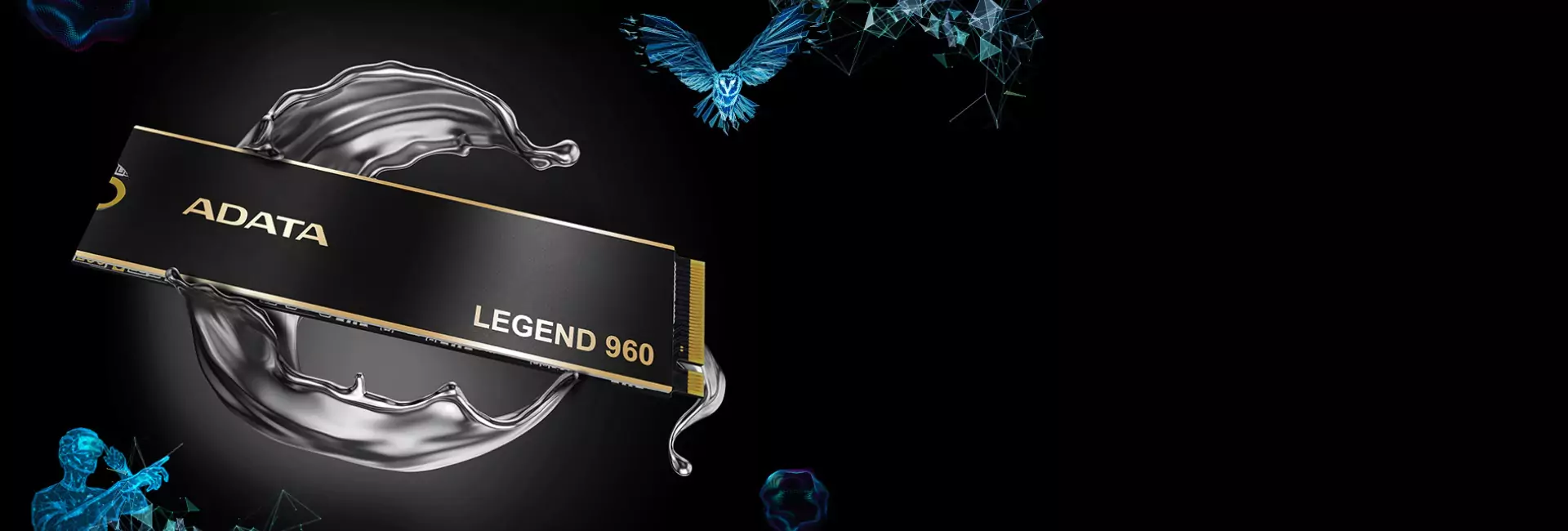
Solid State Drives (SSDs)
Solid State Drives (SSDs) are a popular type of data storage device that use flash memory to store data, offering faster performance, lower power consumption, and greater durability compared to traditional Hard Disk Drives (HDDs). There are various types of SSDs, and they differ in terms of their interface, form factor, and performance characteristics. Here’s an overview of the main types of SSDs and the specifications that distinguish them:
Types of Solid-State Drives (SSDs)
- SATA SSDs (Serial Advanced Technology Attachment)
- Interface: SATA III (6 Gbps)
- Form Factor: 2.5-inch (most common, similar to laptop HDDs)
- Performance: Typically, SATA SSDs offer sequential read and write speeds of up to 550 MB/s, which is faster than HDDs but slower than other SSD types like NVMe.
- Use Case: Good for upgrading older computers, laptops, and desktops with a SATA interface.
- Pros: Affordable, widely compatible with older systems.
- Cons: Limited speed due to the SATA interface bottleneck.
- NVMe SSDs (Non-Volatile Memory Express)
- Interface: PCIe (Peripheral Component Interconnect Express), usually PCIe Gen 3 or Gen 4
- Form Factor: M.2 (most common), U.2, and PCIe expansion cards
- Performance: NVMe SSDs are significantly faster than SATA SSDs. PCIe Gen 3 NVMe drives can offer sequential read/write speeds of up to 3,500 MB/s or higher, while PCIe Gen 4 can reach up to 7,000 MB/s or more.
- Use Case: Ideal for high-performance applications like gaming, content creation, and professional workloads.
- Pros: Extremely fast data transfer rates, low latency.
- Cons: More expensive than SATA SSDs, not always compatible with older systems.
- M.2 SSDs
- Interface: Can support either SATA or NVMe interfaces (important to check if it's NVMe or SATA).
- Form Factor: M.2 is a small, thin form factor often used in laptops and desktops. It comes in various lengths (e.g., 2242, 2260, 2280), with 2280 being the most common.
- Performance: Varies depending on whether the SSD uses SATA or NVMe. NVMe M.2 SSDs are much faster than SATA-based M.2 SSDs.
- Use Case: Found in laptops, ultrabooks, and desktops, especially where space is limited.
- Pros: Compact, fast (for NVMe versions).
- Cons: M.2 NVMe drives can get hot and may need heatsinks.
- U.2 SSDs
- Interface: PCIe (often PCIe Gen 3 or Gen 4)
- Form Factor: U.2 (formerly known as SFF-8639)
- Performance: U.2 SSDs can offer similar performance to M.2 NVMe drives but are typically used in enterprise systems.
- Use Case: Used in high-end workstations, servers, and data centers.
- Pros: Enterprise-level performance, hot-swappable.
- Cons: Larger form factor, more expensive, requires compatible connectors.
- PCIe Expansion Card SSDs
- Interface: PCIe (typically Gen 3 or Gen 4)
- Form Factor: Expansion card inserted into a PCIe slot (usually for desktops)
- Performance: Can offer extremely high speeds (up to 10,000 MB/s or more for Gen 4 models), often used for specialized applications.
- Use Case: High-performance computing, workstations, gaming rigs, and data centers.
- Pros: Can provide the fastest SSD speeds, ideal for professional workloads.
- Cons: Requires an available PCIe slot, typically larger and more expensive.
Key Specifications for SSDs
When evaluating SSDs, here are the main specifications to consider:
- Capacity:
- SSDs come in various capacities, typically ranging from 120 GB to 8 TB or more. Common consumer capacities include 250 GB, 500 GB, 1 TB, and 2 TB.
- Sequential Read/Write Speed:
- Sequential Speed: Refers to how quickly the SSD can read or write large blocks of data (e.g., transferring files). This is one of the most important performance metrics.
- SATA SSDs: Up to 550 MB/s
- NVMe PCIe Gen 3: Up to 3,500 MB/s
- NVMe PCIe Gen 4: Up to 7,000 MB/s or more
- Higher speeds are critical for tasks like video editing, gaming, and data analysis.
- Sequential Speed: Refers to how quickly the SSD can read or write large blocks of data (e.g., transferring files). This is one of the most important performance metrics.
- Random Read/Write Speed:
- Random Speed: Indicates the SSD’s ability to handle small, random read/write operations, which is important for overall system responsiveness (e.g., loading programs or booting the system).
- Measured in IOPS (Input/Output Operations Per Second).
- NVMe SSDs typically outperform SATA SSDs in random read/write tasks.
- Random Speed: Indicates the SSD’s ability to handle small, random read/write operations, which is important for overall system responsiveness (e.g., loading programs or booting the system).
- Endurance (TBW, DWPD):
- TBW (Terabytes Written): The total amount of data that can be written to the drive before it may start to wear out.
- DWPD (Drive Writes Per Day): The number of times the full capacity of the drive can be written per day over its warranty period (usually 3-5 years).
- Higher endurance is essential for tasks that involve heavy writing to the disk, such as video recording or database storage.
- Form Factor:
- The size and shape of the SSD affect where it can be installed. Common form factors include:
- 2.5-inch: For SATA SSDs, commonly used in laptops and desktops.
- M.2: A small, flexible form factor used in laptops and desktops, supporting both SATA and NVMe protocols.
- U.2: Used mainly in enterprise servers and workstations.
- PCIe expansion cards: For extreme performance, often used in desktop workstations.
- The size and shape of the SSD affect where it can be installed. Common form factors include:
- NAND Flash Type:
- SLC (Single-Level Cell): Stores 1 bit per cell, offering the fastest speeds and highest endurance but at a higher cost.
- MLC (Multi-Level Cell): Stores 2 bits per cell, balancing performance, cost, and endurance.
- TLC (Triple-Level Cell): Stores 3 bits per cell, providing a good balance between performance and cost but with lower endurance.
- QLC (Quad-Level Cell): Stores 4 bits per cell, offering larger capacities at a lower cost but with the lowest endurance.
- Controller:
The controller manages the data read/write operations and affects the overall performance of the SSD. High-quality controllers can enhance speed and reliability
Solid State Drives (SSDs)
Solid State Drives (SSDs) are a popular type of data storage device that use flash memory to store data, offering faster performance, lower power consumption, and greater durability compared to traditional Hard Disk Drives (HDDs). There are various types of SSDs, and they differ in terms of their interface, form factor, and performance characteristics. Here’s an overview of the main types of SSDs and the specifications that distinguish them:
Types of Solid-State Drives (SSDs)
- SATA SSDs (Serial Advanced Technology Attachment)
- Interface: SATA III (6 Gbps)
- Form Factor: 2.5-inch (most common, similar to laptop HDDs)
- Performance: Typically, SATA SSDs offer sequential read and write speeds of up to 550 MB/s, which is faster than HDDs but slower than other SSD types like NVMe.
- Use Case: Good for upgrading older computers, laptops, and desktops with a SATA interface.
- Pros: Affordable, widely compatible with older systems.
- Cons: Limited speed due to the SATA interface bottleneck.
- NVMe SSDs (Non-Volatile Memory Express)
- Interface: PCIe (Peripheral Component Interconnect Express), usually PCIe Gen 3 or Gen 4
- Form Factor: M.2 (most common), U.2, and PCIe expansion cards
- Performance: NVMe SSDs are significantly faster than SATA SSDs. PCIe Gen 3 NVMe drives can offer sequential read/write speeds of up to 3,500 MB/s or higher, while PCIe Gen 4 can reach up to 7,000 MB/s or more.
- Use Case: Ideal for high-performance applications like gaming, content creation, and professional workloads.
- Pros: Extremely fast data transfer rates, low latency.
- Cons: More expensive than SATA SSDs, not always compatible with older systems.
- M.2 SSDs
- Interface: Can support either SATA or NVMe interfaces (important to check if it's NVMe or SATA).
- Form Factor: M.2 is a small, thin form factor often used in laptops and desktops. It comes in various lengths (e.g., 2242, 2260, 2280), with 2280 being the most common.
- Performance: Varies depending on whether the SSD uses SATA or NVMe. NVMe M.2 SSDs are much faster than SATA-based M.2 SSDs.
- Use Case: Found in laptops, ultrabooks, and desktops, especially where space is limited.
- Pros: Compact, fast (for NVMe versions).
- Cons: M.2 NVMe drives can get hot and may need heatsinks.
- U.2 SSDs
- Interface: PCIe (often PCIe Gen 3 or Gen 4)
- Form Factor: U.2 (formerly known as SFF-8639)
- Performance: U.2 SSDs can offer similar performance to M.2 NVMe drives but are typically used in enterprise systems.
- Use Case: Used in high-end workstations, servers, and data centers.
- Pros: Enterprise-level performance, hot-swappable.
- Cons: Larger form factor, more expensive, requires compatible connectors.
- PCIe Expansion Card SSDs
- Interface: PCIe (typically Gen 3 or Gen 4)
- Form Factor: Expansion card inserted into a PCIe slot (usually for desktops)
- Performance: Can offer extremely high speeds (up to 10,000 MB/s or more for Gen 4 models), often used for specialized applications.
- Use Case: High-performance computing, workstations, gaming rigs, and data centers.
- Pros: Can provide the fastest SSD speeds, ideal for professional workloads.
- Cons: Requires an available PCIe slot, typically larger and more expensive.
Key Specifications for SSDs
When evaluating SSDs, here are the main specifications to consider:
- Capacity:
- SSDs come in various capacities, typically ranging from 120 GB to 8 TB or more. Common consumer capacities include 250 GB, 500 GB, 1 TB, and 2 TB.
- Sequential Read/Write Speed:
- Sequential Speed: Refers to how quickly the SSD can read or write large blocks of data (e.g., transferring files). This is one of the most important performance metrics.
- SATA SSDs: Up to 550 MB/s
- NVMe PCIe Gen 3: Up to 3,500 MB/s
- NVMe PCIe Gen 4: Up to 7,000 MB/s or more
- Higher speeds are critical for tasks like video editing, gaming, and data analysis.
- Sequential Speed: Refers to how quickly the SSD can read or write large blocks of data (e.g., transferring files). This is one of the most important performance metrics.
- Random Read/Write Speed:
- Random Speed: Indicates the SSD’s ability to handle small, random read/write operations, which is important for overall system responsiveness (e.g., loading programs or booting the system).
- Measured in IOPS (Input/Output Operations Per Second).
- NVMe SSDs typically outperform SATA SSDs in random read/write tasks.
- Random Speed: Indicates the SSD’s ability to handle small, random read/write operations, which is important for overall system responsiveness (e.g., loading programs or booting the system).
- Endurance (TBW, DWPD):
- TBW (Terabytes Written): The total amount of data that can be written to the drive before it may start to wear out.
- DWPD (Drive Writes Per Day): The number of times the full capacity of the drive can be written per day over its warranty period (usually 3-5 years).
- Higher endurance is essential for tasks that involve heavy writing to the disk, such as video recording or database storage.
- Form Factor:
- The size and shape of the SSD affect where it can be installed. Common form factors include:
- 2.5-inch: For SATA SSDs, commonly used in laptops and desktops.
- M.2: A small, flexible form factor used in laptops and desktops, supporting both SATA and NVMe protocols.
- U.2: Used mainly in enterprise servers and workstations.
- PCIe expansion cards: For extreme performance, often used in desktop workstations.
- The size and shape of the SSD affect where it can be installed. Common form factors include:
- NAND Flash Type:
- SLC (Single-Level Cell): Stores 1 bit per cell, offering the fastest speeds and highest endurance but at a higher cost.
- MLC (Multi-Level Cell): Stores 2 bits per cell, balancing performance, cost, and endurance.
- TLC (Triple-Level Cell): Stores 3 bits per cell, providing a good balance between performance and cost but with lower endurance.
- QLC (Quad-Level Cell): Stores 4 bits per cell, offering larger capacities at a lower cost but with the lowest endurance.
- Controller:
The controller manages the data read/write operations and affects the overall performance of the SSD. High-quality controllers can enhance speed and reliability